

Locking Down Your WiFi – A Guide to Network Security
Why Your WiFi Network Needs Protection Today
Learning how to secure WiFi is essential as wireless connections power our daily lives and business operations. Just as you lock your front door, your WiFi network needs security measures to protect against digital intruders.
Quick WiFi Security Checklist:
- Change default router passwords – Both admin login and WiFi password
- Enable WPA3 encryption (or WPA2 if WPA3 isn’t available)
- Update router firmware regularly for security patches
- Create a guest network for visitors and IoT devices
- Use a VPN when connecting to public WiFi
- Disable WPS and UPnP convenience features that create vulnerabilities
The risks are real. Up to 80% of routers ship with severe security vulnerabilities that cybercriminals can exploit to steal data, spy on you, or use your network for illegal activities traced back to you.
On public WiFi, your data often transfers unencrypted, making it accessible to anyone with basic hacking tools. Even at home, an unsecured network is like shouting your personal conversations across a crowded room.
This guide will walk you through every step needed to lock down your wireless network.
I’m Mitch Johnson, founder of ProLink IT Services. With over 20 years of experience, I’ve seen that most security breaches happen not because the technology is complex, but because people don’t know which simple steps make the biggest difference.
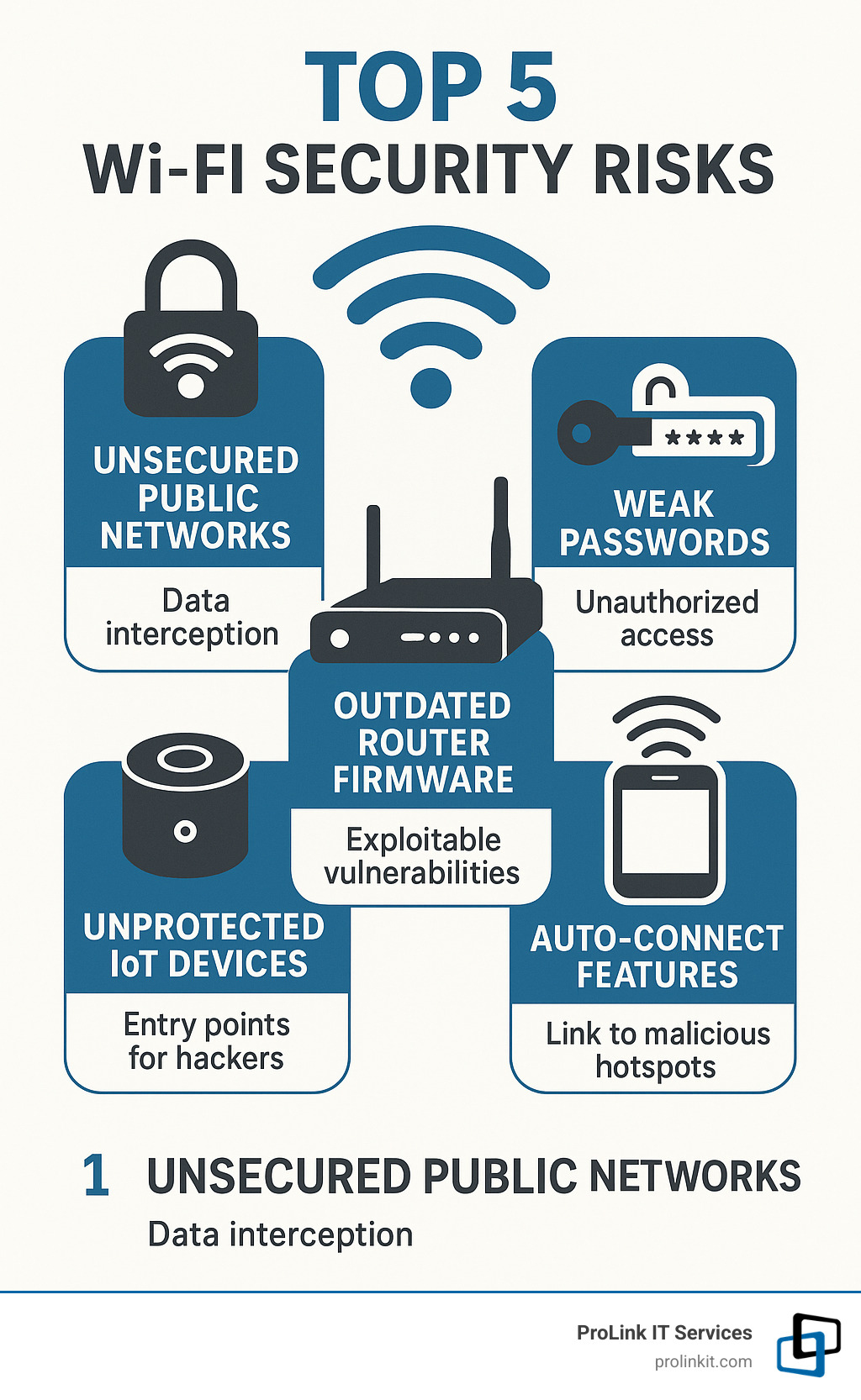
Handy how to secure WiFi terms:
Understanding the Dangers: Risks of Unsecured Wi-Fi
An unsecured WiFi network is an open door to your digital life, allowing cybercriminals to enter without you ever knowing.
The most immediate threat is data theft. Without security, your emails, passwords, and files are an open book for hackers. This can lead to identity theft, where criminals use your information to open credit accounts, make purchases, or commit crimes in your name.
Malware infection spreads rapidly on unsecured networks. One infected device can compromise your entire home network, from laptops to smart TVs, often from a single bad click.
Digital eavesdropping is a modern threat. Hackers can monitor your calls, messages, and browsing. In man-in-the-middle attacks, they intercept and can even alter your traffic.
Then there’s network piggybacking – uninvited guests using your internet. This isn’t harmless; you could face legal liability if they use your network for illegal acts, as your IP address will be traced.
Even secure networks aren’t foolproof. WPA2 encryption is vulnerable to KRACK attacks, which can break through strong protection. Understanding how to secure WiFi means staying ahead of evolving threats, and knowing how to detect threats gives you an advantage.
The Perils of Public Wi-Fi
Free public WiFi has a hidden cost: your security. Cybercriminals create fake hotspots with names like “FreeCoffeeWiFi.” Connecting to one exposes your every keystroke.
Most public networks are unencrypted, sending your data in plain text. This enables session hijacking, where criminals steal login cookies to take over your accounts.
Don’t forget about shoulder surfing—sometimes the lowest-tech attacks are the most effective. The person behind you might be memorizing your passwords as you type.
Vulnerabilities in Your Home Network
Your home network connects everything from baby monitors to door locks, creating multiple entry points for attackers. A WiFi breach gives them the keys to your digital kingdom.
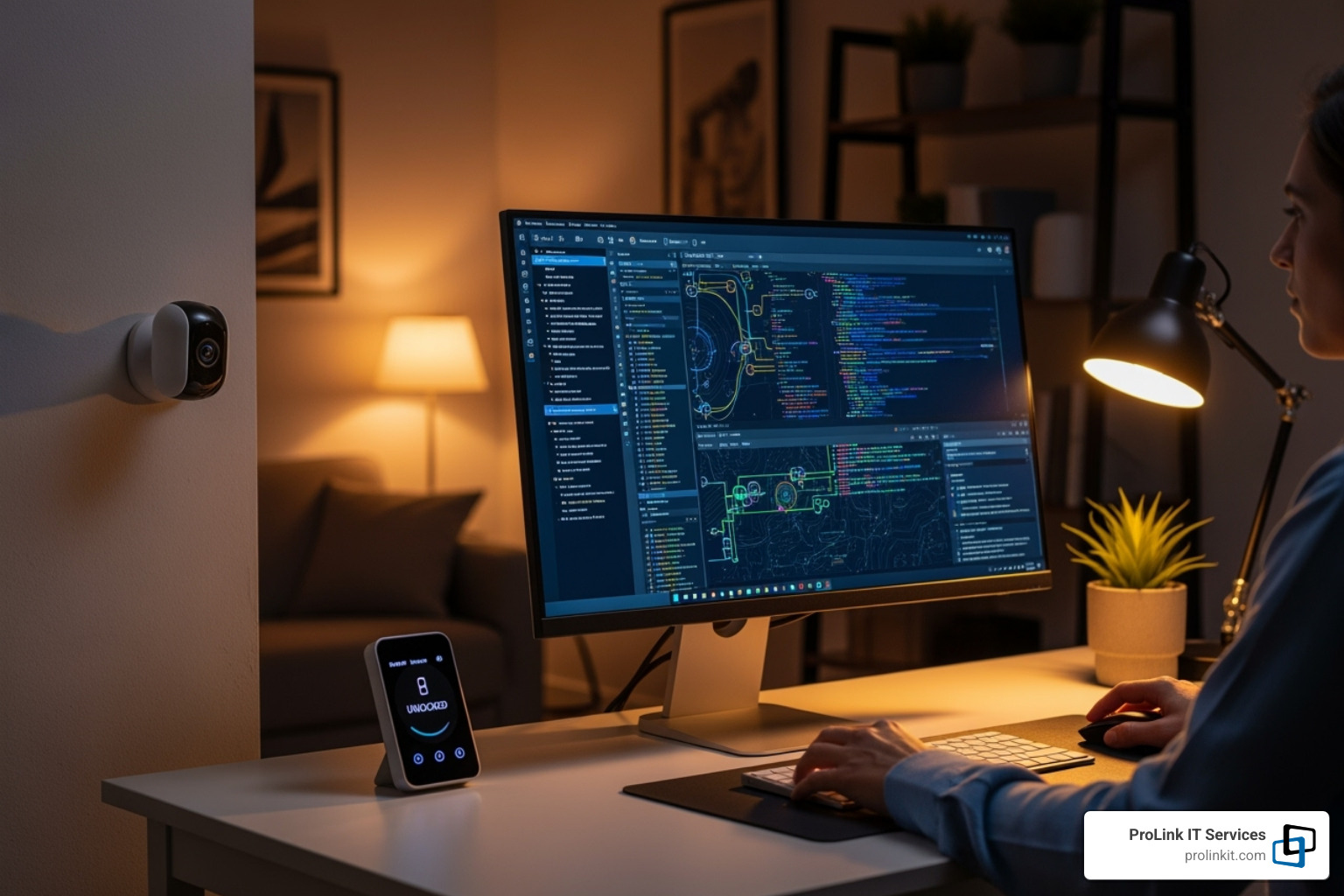
Compromised IoT devices are a major risk, as most people don’t change default passwords or update firmware. Smart cameras and voice assistants can become spy devices. We’ve seen cases where criminals watched families through their own security cameras.
Once inside, attackers gain access to personal files on shared drives or computers. Your family photos, tax documents, and business files become vulnerable.
Malware can spread to all connected devices. A single infected smart bulb can compromise your entire home office. Securing your WiFi protects your entire connected life, not just one device.
Your First Line of Defense: Essential Home Router Security
Your router is the front door to your digital home. Learning how to secure WiFi starts with locking down this critical gateway, which controls the security of every device in your home.
Many people plug in their router and forget it, but spending 20 minutes on security now can prevent months of future headaches. The most important steps are simple. Focus on three key areas: changing default passwords, updating firmware, and disabling risky features. These principles also apply to businesses, as detailed in our guide on 7 Top Network Security Tips for Businesses.
Change Your Router’s Admin Name and Password
Most routers ship with default credentials like “admin/admin,” which are incredibly insecure.
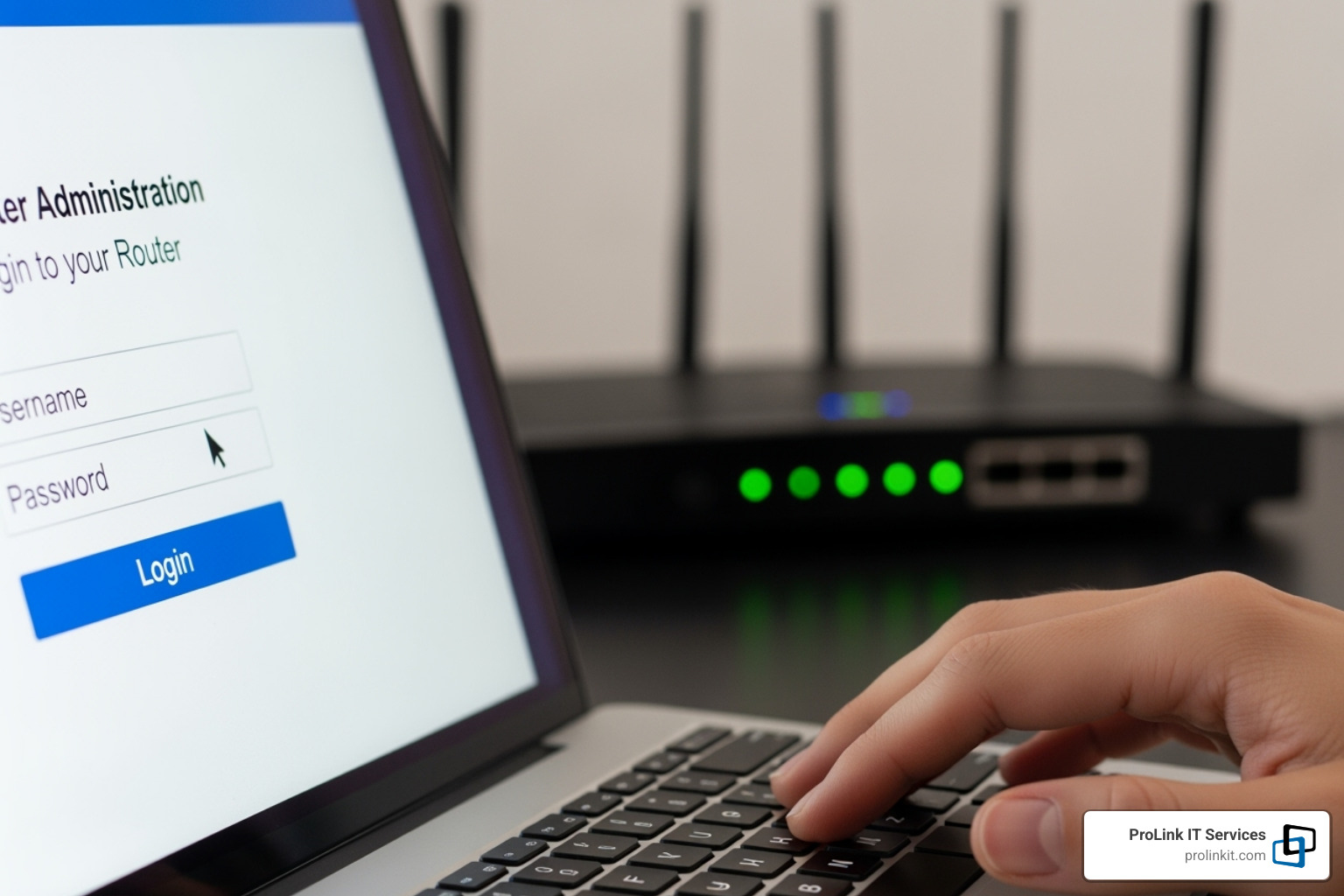
Why are defaults dangerous? Hackers use lists of default credentials to access your router’s admin panel. Once in, they own your network and can change passwords, spy on traffic, install malware, or lock you out.
Finding your router’s login page is usually straightforward. Look for a sticker on the router for the default login info and web address (typically 192.168.1.1). Type that address into a web browser to find the login screen.
Create a bulletproof password. Go beyond “Password123!” by using a long phrase with mixed characters, numbers, and symbols, like “MyDog$Loves2Bark!”. Avoid personal details. This makes you a harder target.
Keep Your Router’s Firmware Updated
Your router’s software, called firmware, needs security updates just like your phone. The difference is your router won’t send you notifications.
Firmware updates contain critical security patches for new vulnerabilities. Skipping them is risky, as research shows up to 80% of routers have vulnerabilities that updates could fix.
Enable automatic updates if your router supports them. For older routers, you must manually check the manufacturer’s website, download the update, and install it via the admin panel. This is tedious but crucial for avoiding a network compromise.
Disable Risky Convenience Features
Convenience and security often don’t mix. Learning how to secure WiFi means knowing which router features to disable.
WPS (Wi-Fi Protected Setup) offers easy connection via a PIN, but this PIN is easily cracked by attackers in hours. Turn this feature off immediately.
UPnP (Universal Plug and Play) lets devices open router ports automatically. While convenient for gaming, it creates security holes for malware. Disable it unless absolutely necessary.
Remote administration lets you manage your router from anywhere, but it also opens your network to attack from the internet. Turn it off unless you absolutely need it. If you do, protect it with an extremely strong password and consider using a VPN for access.
How to Secure WiFi with Strong Encryption and Passwords
With your router admin settings secure, let’s focus on the wireless connection itself. Encryption scrambles your data as it travels through the air, while your WiFi password is the key that allows trusted devices to join your network. Getting these right is crucial. For business security strategies, see our guide on 5 Essential IT Security Services to Consider.
Choose the Strongest Encryption (WPA2 vs. WPA3)
Encryption turns your data into gibberish as it travels wirelessly. Without it, anyone nearby can read your emails, see your browsing, and steal passwords.
| Encryption Protocol | Security Level | Recommendations |
|---|---|---|
| WEP | Obsolete, Insecure | Avoid at all costs. Easily cracked. If your hardware only supports WEP, replace it. |
| WPA | Obsolete, Insecure | Better than WEP, but still vulnerable. Replace hardware if this is your only option. |
| WPA2 (AES) | Good, Industry Standard | Minimum recommended. Uses strong AES encryption. Ensure TKIP is not used if AES is available. |
| WPA2/WPA3 Transitional | Very Good | Offers compatibility with older WPA2 devices while supporting newer WPA3 devices. |
| WPA3 Personal | Excellent, Latest Standard | Highly recommended. Offers stronger encryption, improved defense against brute-force attacks, and improved privacy. |
WPA3 is the current gold standard. It offers major improvements over WPA2, especially against password-guessing attacks. Routers made after 2018 likely support it.
WPA2-AES is the minimum standard if WPA3 is unavailable, as the Wi-Fi Alliance strongly recommends WPA2 adoption. Ensure you use AES encryption, not the weaker TKIP protocol.
Time to upgrade? If your router only supports WEP or WPA, it’s a security emergency. These protocols can be cracked in minutes. A modern WPA3-compatible router offers better security, performance, and range.
How to secure WiFi with a strong, unique password
Strong encryption is useless with a weak password. Your WiFi password is the front door to your network; a weak one leaves it wide open.
Length often trumps complexity. A long passphrase can be stronger than a short, complex one. Aim for at least 12-16 characters with a mix of uppercase, lowercase, numbers, and symbols.
Avoid obvious passwords. Personal details like names, birthdays, or addresses are easily guessed by hacker software that tests millions of combinations per second.
Password managers are your friend. They can generate truly random, complex passwords and remember them for you, giving your network a password that would take centuries to crack.
Change Your Network’s Name (SSID)
Your WiFi network’s name (SSID) is an important security detail. Most routers ship with default names like “Linksys_5GHz,” which tells attackers your router’s brand.
Default names are red flags. They help hackers identify your router model and its known vulnerabilities, making you an easy target.
Choose something unique but anonymous for your new SSID. Avoid personal information like “SmithFamilyWiFi.” Instead, try something memorable but meaningless to outsiders, like “BlueElephant47.”
Hiding your SSID offers minimal protection and is mostly a hassle. This “security through obscurity” doesn’t stop determined attackers. Your focus should be on strong encryption and a robust password, which provide far better protection.
Advanced Layers of Protection for Your Network
Network security is like protecting a home; you need multiple layers. The same principle applies when you’re learning how to secure WiFi networks. Once you’ve nailed the basics, these additional measures create multiple barriers for cybercriminals. For businesses that need enterprise-level protection, our Cybersecurity Solutions provide comprehensive, custom security strategies.
Isolate Devices with Guest Networks and Firewalls
Not all devices on your network deserve the same trust. Your laptop with sensitive files shouldn’t be on the same network as a smart toaster that hasn’t been updated in years. This separation is called network segmentation.
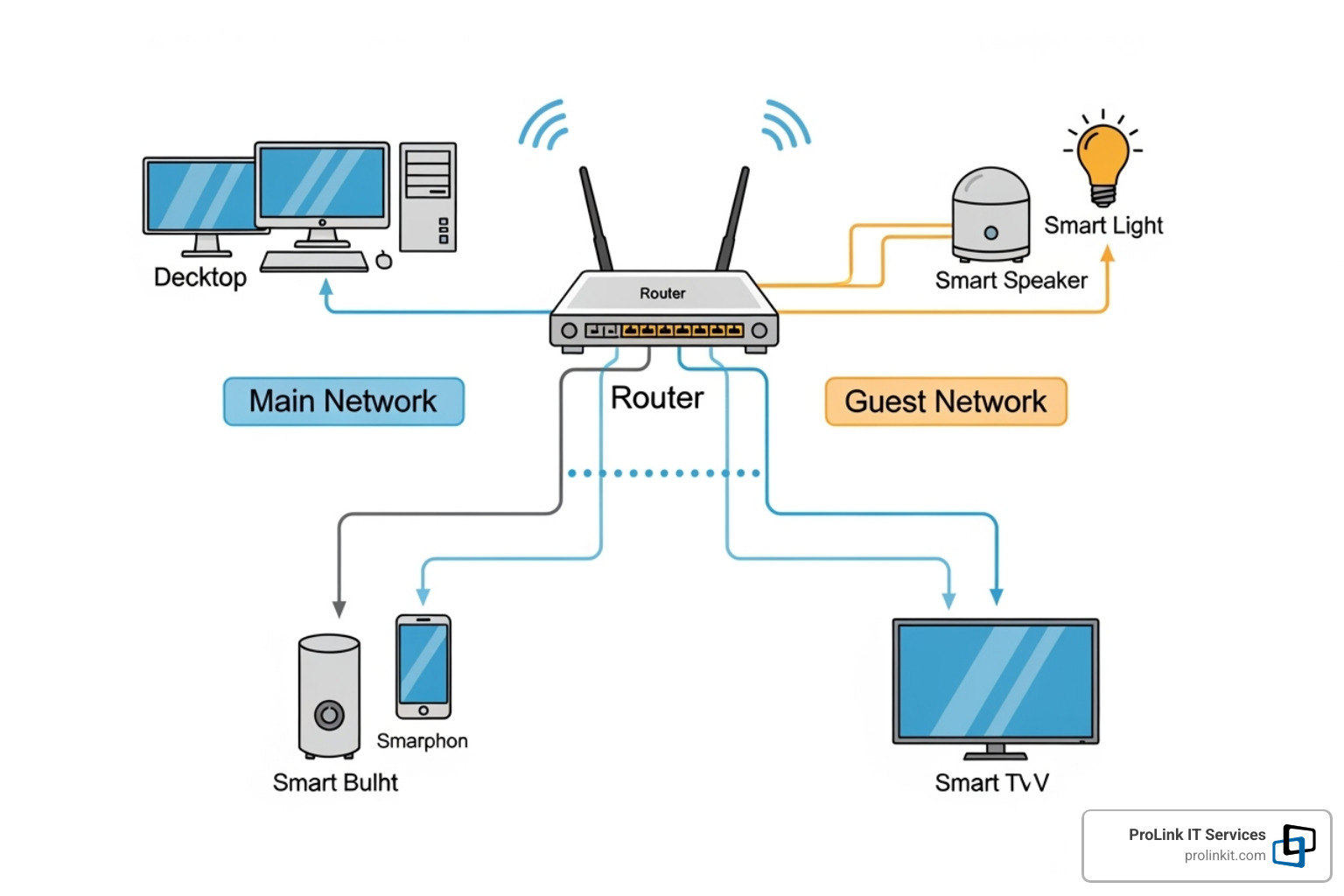
A guest network creates a separate Wi-Fi connection with its own password, isolated from your main network. Devices on it can access the internet but can’t see your primary network’s devices or files. It’s like a digital guest house.
We advise clients to put their IoT devices on the guest network. Smart TVs, voice assistants, and cameras are notoriously insecure. If a hacker compromises a device on the guest network, they are stuck there and can’t easily access your main network.
Guest networks are perfect for actual guests too. Instead of sharing your main WiFi password, give visitors access to the guest network. You can change the guest password regularly without affecting your own devices.
Your router’s built-in firewall acts as a digital bouncer, monitoring traffic and blocking suspicious activity. Most routers have this on by default, but it’s worth checking that it’s enabled and set to a high security level.
MAC address filtering adds another small layer of control by allowing only approved devices (identified by their unique MAC address) to connect. While determined hackers can bypass this, it’s another hurdle for attackers.
How to secure WiFi connections when you’re in public
Public WiFi is convenient but should never be fully trusted. Here’s how to secure WiFi connections when you’re away from your home network.
Using a VPN is your best defense on public networks. A Virtual Private Network creates an encrypted tunnel for your data, making it unreadable to hackers. Install a reputable VPN for encryption on all your devices and turn it on whenever you use public WiFi.
Always verify network names before connecting. Criminals set up fake networks like “FreeAirportWiFi” to steal data. When in doubt, ask an employee for the official network name.
Turn off auto-connect features for public networks. Your device might automatically connect to a malicious network with a familiar name.
Your mobile data can be your lifeline. When public WiFi feels sketchy, use your phone’s personal hotspot. It’s generally more secure because cellular connections are encrypted.
Always look for HTTPS before entering sensitive information. Websites showing “https://” and a padlock icon create their own encrypted connection, protecting your data even on an unsecured network.
Frequently Asked Questions about Wi-Fi Security
Over years of helping people learn how to secure WiFi, I’ve noticed the same questions come up repeatedly. Here are the answers to the most common concerns.
How often should I change my Wi-Fi password?
Best practice suggests changing your Wi-Fi password every six months as part of good digital hygiene. However, you should change your password immediately if you suspect unauthorized access, notice unfamiliar devices, or have shared your password with someone you no longer trust.
For example, if a contractor or former roommate had access, it’s time for a fresh password. The same goes if you’ve removed an unrecognized device from your network. A strong, unique password changed every six months is better than a weak one changed monthly.
Is hiding my Wi-Fi network name (SSID) a good security measure?
Hiding your SSID provides minimal security benefits and is considered “security through obscurity.” While it seems like a smart move, it’s not an effective defense.
While hiding your network name removes it from casual lists, anyone with basic scanning tools can still detect it. It won’t stop a determined attacker. Your energy is much better invested in the security measures that actually make a difference: using WPA3 or WPA2-AES encryption and creating a strong, unique WiFi password.
Can my internet provider secure my Wi-Fi for me?
This is a common misconception. Your internet provider secures the connection between their network and your home, but you are responsible for securing the wireless network inside your home. Think of it like your water utility; they ensure water reaches your property, but the plumbing inside is your responsibility.
Many ISPs provide routers with basic security settings, but they don’t typically handle ongoing security management like firmware updates or advanced configuration. This gives you control over your own security, allowing you to implement protections that fit your specific needs.
Conclusion: Proactive Management for Lasting Security
Congratulations on learning how to secure WiFi networks. However, setup is just the beginning. WiFi security is like tending a garden; it requires regular maintenance to thrive and stay protected.
These steps transform your network from a welcome mat for criminals into a fortress. You now understand the dangers of unsecured networks, have mastered the basics of router security, and can choose strong encryption protocols and passwords to deter hackers.
But the digital world never sleeps, and new vulnerabilities emerge regularly. Staying vigilant is your secret weapon. Set a reminder to check for router firmware updates every few months. Periodically review your connected devices and remove any you don’t recognize. Change your WiFi password twice a year.
Advanced strategies like guest networks and firewalls are your insurance policy. If a smart device is compromised, a guest network contains the damage. Remember your public WiFi safety tips, too. Using a VPN and being careful about which networks you join become second nature with practice.
For businesses, the stakes are even higher. As a veteran-owned company, ProLink IT Services brings discipline and integrity to protecting your business infrastructure. We partner with you for the long haul, monitoring threats, updating systems, and keeping your business running smoothly.
Whether you’re protecting your family or your company’s data, the principles are the same: be proactive, stay informed, and never let your guard down. For comprehensive protection and peace of mind, explore our Managed IT Services. Because when it comes to cybersecurity, you’re not just protecting data—you’re protecting your livelihood and your future.