

Lost and Found – Your Guide to Data Recovery
Why Data Recovery Matters for Every Business
Knowing how to recover data is critical when disaster strikes. Whether it’s an accidental deletion, hard drive failure, or ransomware, the right steps can prevent a business catastrophe.
Quick Data Recovery Steps:
- Stop using the affected device immediately to prevent overwriting
- Check simple locations first – Recycle Bin, Trash, or recent backups
- Use built-in recovery tools like Windows File Recovery or Time Machine
- Try data recovery software for deeper scans if built-in tools fail
- Contact professionals for physical damage or critical business data
As one forum user desperately posted: “My hard drive was accidentally formatted. There are many important files in it. I urgently need to find a way to recover files from a formatted hard drive.” This panic is all too common in today’s digital world.
The good news is that most data loss is recoverable if you act quickly. From simple deletions to partition failures, proven methods can bring your files back.
The key is knowing what to do first—and what not to do. Many people make recovery impossible by continuing to use the affected drive, which can overwrite the lost data.
I’m Mitch Johnson, and with over 20 years of experience in IT disaster recovery, I’ve guided countless clients on how to recover data. In this guide, I’ll share the step-by-step approach we use at ProLink IT Services to maximize your chances of getting your files back.
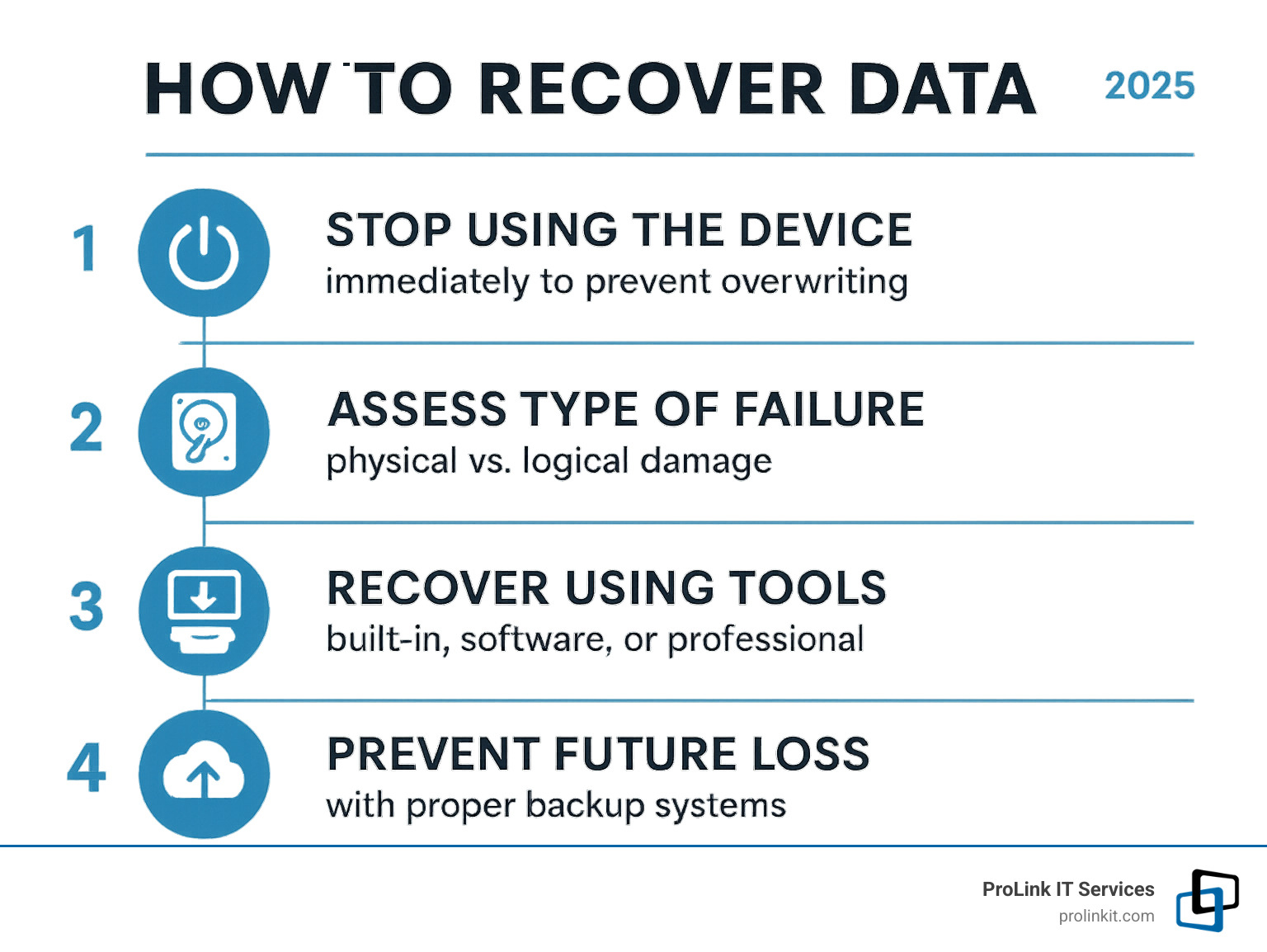
Easy how to recover data glossary:
First Steps: What to Do Immediately After Data Loss

When you realize important files are gone, your first instinct might be to panic. But the most important step in how to recover data successfully is to stop using the device immediately. It feels counterintuitive, but this single action is critical.
When you delete a file, the computer marks its space as “available.” The actual data remains untouched until new data overwrites it. Every action you take risks overwriting your lost files permanently.
Power down your computer or unplug that external drive right now. Every click, every program that opens, every temporary file your system creates could be the one that overwrites your precious data forever. If it’s a mobile device, turn it off completely. Trust me, those extra few minutes of “looking around” aren’t worth the risk.
Next, assess the damage. Power the device on briefly and listen. Do you hear clicking or grinding noises from the hard drive? These sounds usually indicate physical failure, meaning internal components are damaged.
If you hear clicks or whirs, you’re dealing with a physical failure, like a damaged read/write head. Continuing to power on the drive can cause further damage and permanent data loss.
But if your drive sounds normal, you’re likely looking at a logical failure. This is good news! Logical failures—like accidental deletion, formatting, or corrupted file systems—are often much easier to fix.
Finally, isolate the affected computer from your network. Unplug that ethernet cable or disconnect from WiFi. This is especially crucial if you suspect malware or a cyberattack might be involved. The last thing you want is for the problem to spread to other devices.
This might seem like a lot to remember when you’re stressed, but having a plan makes all the difference. That’s exactly why we always recommend that businesses have 3 Bonus Benefits of a Disaster Recovery Plan in place. These plans guide you through these crucial first steps.
The goal right now isn’t to fix everything immediately. It’s to prevent overwriting and give yourself the best possible chance of recovery. Sometimes the hardest part of data recovery is simply having the discipline to stop and think before acting.
Understanding the “Why”: Common Causes of Data Loss
Before learning how to recover data, it’s helpful to understand what causes data loss. Knowing the “why” can guide your recovery approach and help prevent it from happening again.
Human error tops the list at 58% of all data loss incidents. This includes accidentally deleting the wrong folder, formatting a drive, or overwriting a document. The sinking feeling is universal, but these mistakes are often fixable.
Hardware failure comes in second at about 20% of incidents. Hard drives aren’t immortal. After years of spinning, components wear out, power surges can fry circuits, and manufacturing defects can surface. The good news? Even failed hardware often has recoverable data.
Software corruption accounts for roughly 10% of data loss cases. An operating system crash, an application freeze, or a bad update can leave your file system in chaos, but the underlying data is usually still intact.
Malware and ransomware make up about 7% of data loss incidents, but they’re among the most stressful. If you’re dealing with a cyberattack, don’t panic – we’ve outlined 6 Steps to Regain Control During a Cyberattack that can help you respond effectively.
Physical damage rounds out the top five at about 5%. Coffee spills, dropped drives, floods, or fires can physically damage storage devices. These cases often require professional cleanroom facilities, but recovery is still possible.
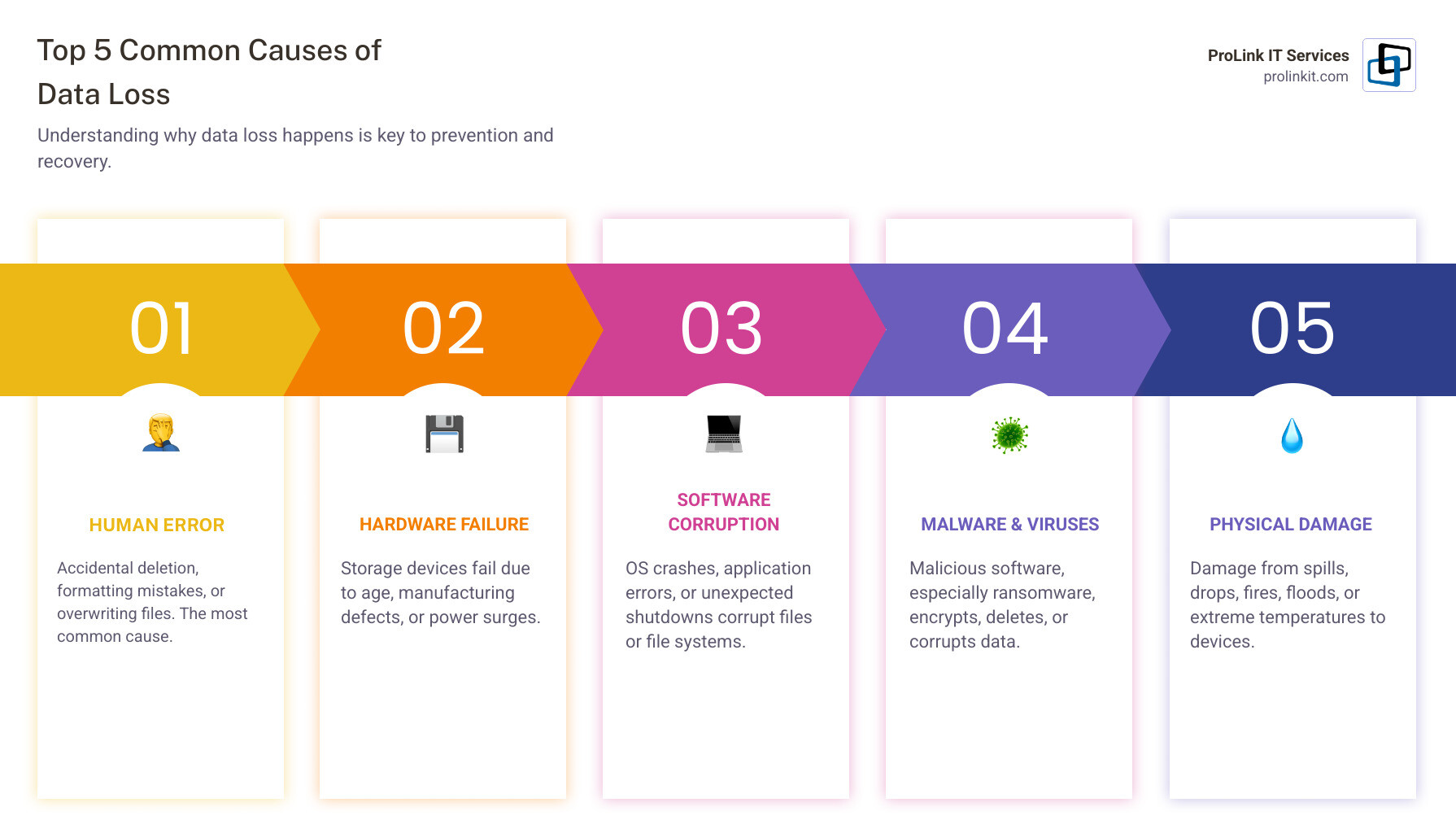
Data loss is a matter of when, not if. The good news is that most scenarios are recoverable if you know how to recover data and act quickly. Understanding the cause helps set realistic expectations and determine the best approach.
Your Toolkit: Methods for How to Recover Data
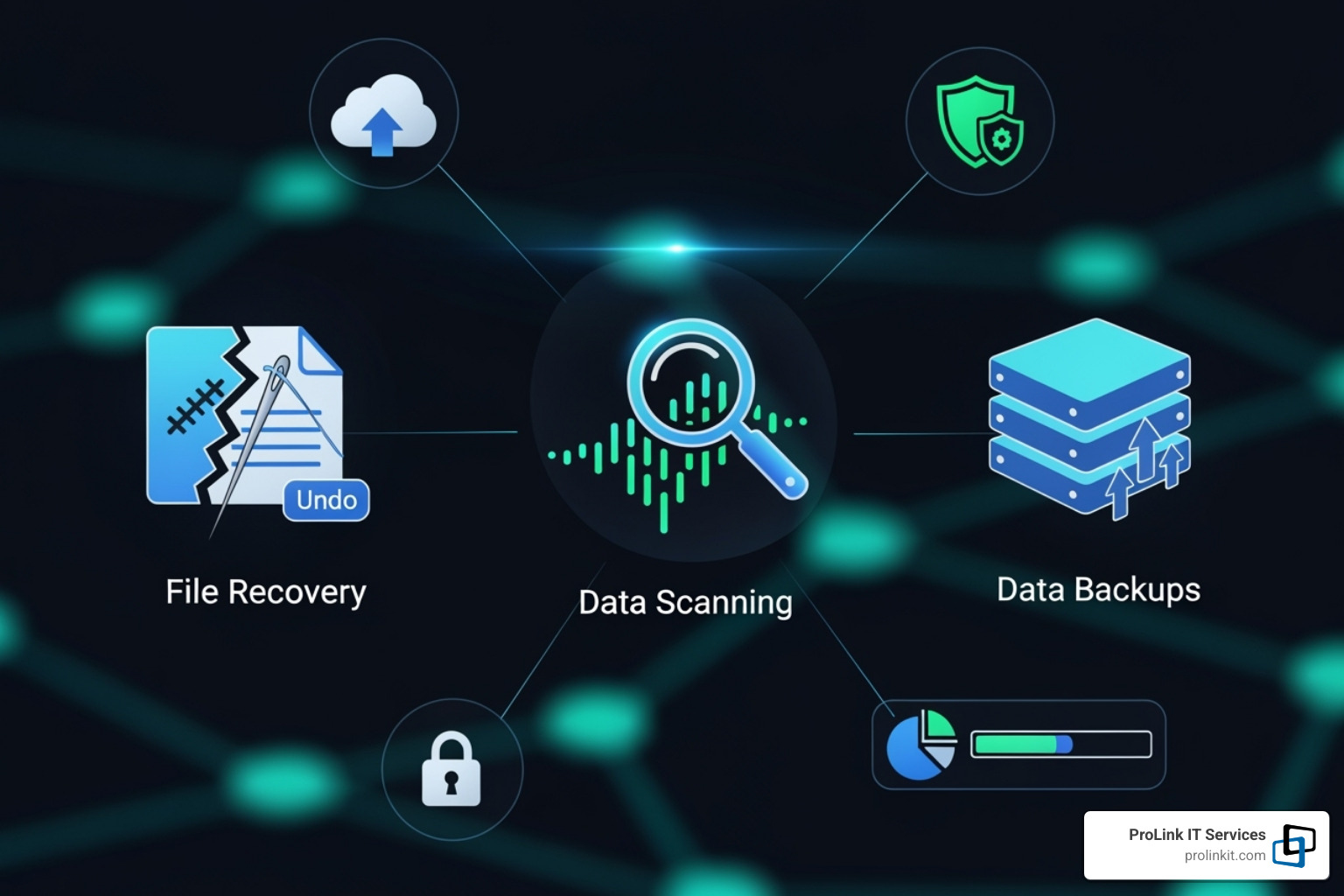
Now, let’s get your files back! When it comes to how to recover data, you have several methods at your disposal, from simple fixes to powerful tools.
Start simple and work your way up. A quick check of the Recycle Bin can sometimes solve the problem. However, DIY solutions have limits, and professional services may be necessary for complex cases.
Let’s walk through your options, from the simplest fixes to more advanced recovery techniques.
Using Built-in Operating System Tools
Before buying software, check the tools already on your computer. The solution is often built-in.
Start with the obvious: check the Recycle Bin on Windows or Trash on Mac. Many “emergencies” are solved with a simple right-click and restore.
If the file isn’t there, check built-in backup features. Windows File History, if enabled, lets you restore previous versions of files directly from File Explorer.
Mac users have Time Machine. If you back up to an external drive, you can easily browse past versions of your files and restore what you need.
For tougher cases, Microsoft offers the free Windows File Recovery tool. It uses a command-line interface but is quite powerful. You can download and learn how to use Windows File Recovery from the Microsoft store.
The tool works differently depending on your situation. For recently deleted files on healthy drives, use Regular mode. For formatted, corrupted, or damaged drives, switch to Extensive mode. Just remember the golden rule: always save recovered files to a different drive than where you’re recovering from.
How to Recover Data with Third-Party Software
When built-in tools fail, third-party recovery software can find traces of files that seem completely gone.
These programs use file system scanning to find entries marked as deleted. For more complex cases, they use file signatures—unique digital fingerprints—to identify and reconstruct different file types like JPEGs or Word documents.
Most recovery software gives you two scanning options. Quick Scan is your first attempt – it’s fast and catches recently deleted files. Deep Scan is the heavy artillery – it methodically examines every sector of your drive looking for file fragments. It takes much longer but it’s your best shot for older deletions or formatted drives.
The RAW recovery feature is particularly impressive. Even when your file system is completely corrupted, these tools can piece together files based on their internal structure.
One thing that separates good software from great software is the previewing feature. Before you commit to recovering hundreds of files, you can actually see thumbnails or previews to make sure they’re intact and worth recovering.
Here’s what typically separates free from paid recovery software:
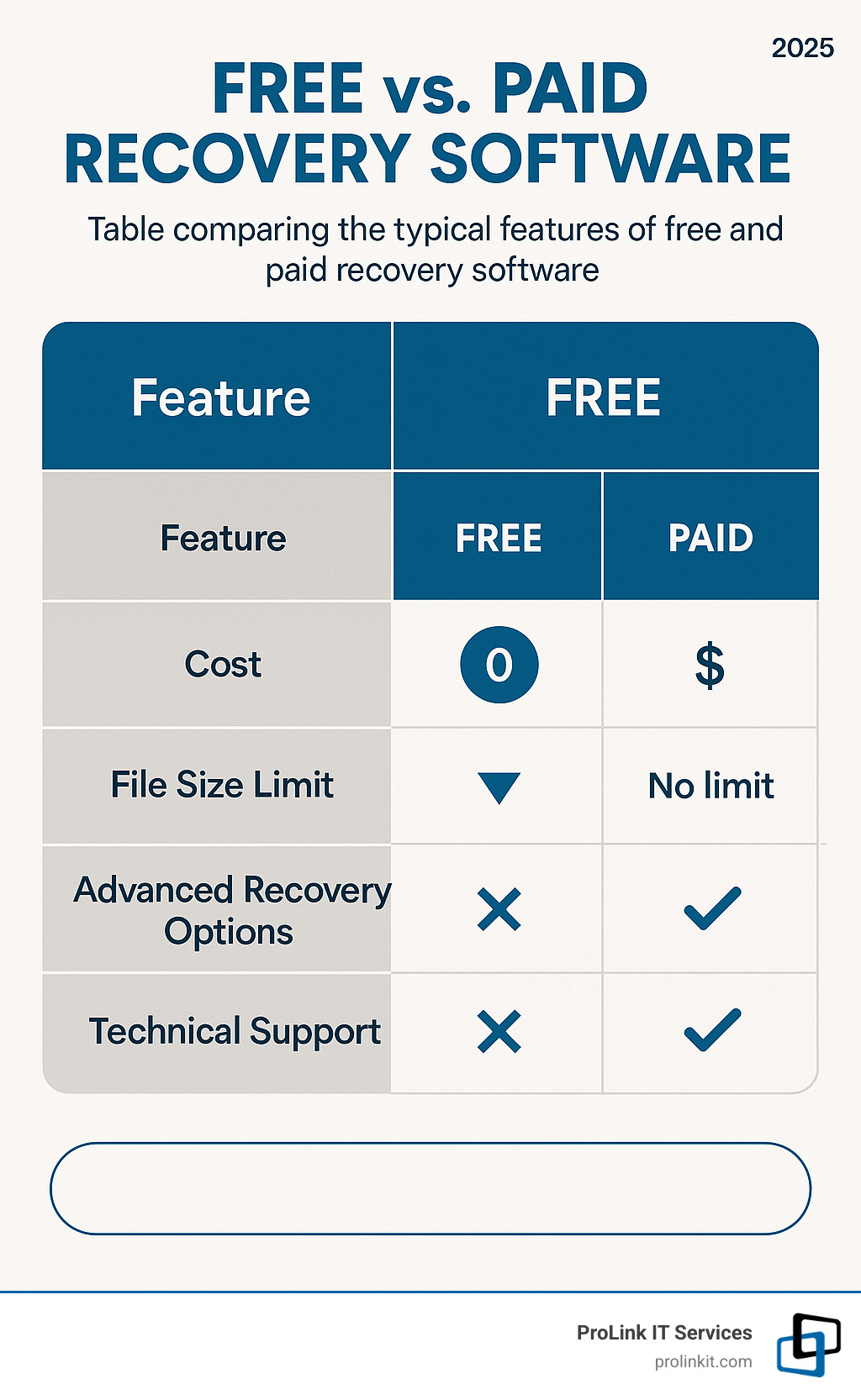
Free software often has recovery limits, perfect for testing if your files are recoverable. Paid software removes these limits and usually adds technical support, advanced features like bootable media creation, and the ability to handle complex scenarios like RAID arrays.
For those who want to dive deep into advanced recovery, there’s TestDisk – a completely free, open-source tool that can work miracles with damaged partitions. You can learn about advanced partition recovery with TestDisk if you’re feeling adventurous.
How to Recover Data from a Formatted Hard Drive
Accidentally formatted a hard drive? Don’t panic. Formatting doesn’t actually erase your data immediately.
A Quick Format erases the file system table, which is like the drive’s index. The data remains, but the computer no longer knows how to find it.
Full Format is more thorough, but even then, specialized tools can sometimes work miracles.
The secret to successful recovery from a formatted drive is acting fast. Every minute you use that drive, you risk the system writing new data over your old files.
Deep scan becomes absolutely critical for formatted drive recovery. The software has to work harder, examining every sector and using file signatures to reconstruct your data.
The most important rule when recovering from a formatted drive: never, ever save the recovered files back to the same drive you’re recovering from. Always use a separate drive or external storage. It’s like trying to save a drowning person while standing on them – it just makes everything worse.
Success depends heavily on how much activity happened after the format. If you formatted and immediately stopped using the drive, your chances are excellent.
Maximizing Success and Preventing Future Disasters

Knowing how to recover data is crucial, but preventing data loss is even better. It’s like a seatbelt: you hope you never need it, but you’re glad it’s there. At ProLink IT Services, we focus on creating robust digital foundations to keep your data safe from the start.
Improving Your Chances of Successful Recovery
When you’re in a data recovery situation, every decision matters. Making the right moves can mean the difference between getting your files back and losing them forever.
The most important rule is to always recover to a separate drive. Saving recovered files to the same drive you’re recovering from can overwrite other lost data, making the situation worse.
Similarly, never install recovery software on the drive you’re trying to recover from. Install it on a different computer or a separate drive. Every byte you write to that damaged drive could be overwriting precious data.
For critical business data or drives making concerning noises, consider creating a disk image first. This creates a complete snapshot of your drive. Tools like TestDisk or professional forensic utilities can help create these safety nets.
Once you have that image, work from the copy, not the original drive. This approach protects your original data while giving you unlimited attempts to recover what you’ve lost.
Finally, accept patience during deep scans. I know it’s nerve-wracking to watch a progress bar crawl along for hours, but interrupting a scan might mean you miss the very files you’re looking for.
Best Practices for Data Loss Prevention
The best data recovery is the one you never perform. Prevention protects your business continuity and peace of mind.
Regular backups are your first line of defense, but they need to be automatic. Relying on yourself to remember to back up files is a recipe for failure.
The gold standard is the 3-2-1 backup rule: keep three copies of important data, on two different types of media, with one copy offsite (in the cloud or at a different location). This redundancy is invaluable when disaster strikes.
Cloud storage services like Microsoft OneDrive or Google Drive aren’t just convenient—they’re lifesavers. They automatically sync files and often keep multiple versions. For businesses, local network storage combined with cloud backup provides both fast recovery and offsite protection.
Don’t overlook the basics: a good Uninterruptible Power Supply (UPS) protects against power surges, and updated antivirus software catches threats. Security awareness training for your team might be the most important investment you make, as most data loss starts with human error.
At ProLink IT Services, we’ve built our reputation on helping businesses implement these protective measures. Our veteran-owned approach means we understand the discipline required for proper data protection. Whether it’s through our How Data Backup Services Can Save Your Business from Disaster or our 24/7 Protection: How Network Security Services Keep Your Data Safe services, we’re here to build that secure digital foundation your business deserves.
Frequently Asked Questions about Data Recovery
When data is lost, the same questions arise. Here are answers to the most common concerns we hear at ProLink IT Services.
What is the difference between free and paid data recovery software?
The biggest differences are recovery limits and available features. Think of it as a free gym trial versus a full membership.
Free software often limits how much data you can recover, sometimes to 500MB or 2GB. This is fine for a few files but insufficient for major data loss.
Some free tools like Recuva, PhotoRec, and TestDisk offer unlimited recovery. However, some use command-line interfaces that can be intimidating for non-technical users.
Paid software removes the training wheels. Beyond unlimited recovery, you get advanced features like RAID recovery, the ability to create bootable drives, faster scan engines, and actual human support. The prices vary widely, from around $25 to $90 or more for a license.
For a few accidentally deleted photos, free tools work great. But for a major data loss situation, investing in paid software often saves time and frustration.
Can data recovery software restore 100% of my lost files?
While we aim for 100% recovery, success depends on several factors, and a full recovery isn’t always possible.
Time is your biggest ally. The sooner you attempt recovery, the better your chances. When a file is deleted, its space is marked as available. The data remains until it’s overwritten by new information.
Overwriting is the enemy. This is what kills most recovery attempts. Every time you save a new file, install software, or even browse the web, you might be writing new data over your deleted files. SSDs are particularly aggressive about this due to a feature called TRIM that actively clears deleted data.
Under perfect conditions—like a recently deleted file on a drive you stopped using immediately—software can restore 100% of your files. But it’s more realistic to expect a high success rate. The preview feature in most recovery software lets you check if files are intact before recovery.
When should I contact a professional data recovery service?
Sometimes DIY isn’t the right approach. If your drive is making clicking, grinding, or unusual buzzing sounds, stop everything and call a professional immediately. These noises usually mean physical damage, and continuing to use the drive can destroy your data forever.
Physical damage requires specialized facilities. Professional data recovery labs have cleanroom environments where technicians can safely disassemble drives without contamination. They can replace damaged parts and extract data from drives that seem completely dead.
Complex systems need expert knowledge. RAID arrays, server configurations, and enterprise storage systems are beyond what consumer software can handle.
When the stakes are highest, don’t take chances. If the lost data is critical to your business, it’s often worth going straight to professionals. The cost of professional recovery is usually much less than the cost of permanently losing irreplaceable business data.
At ProLink IT Services, we work with trusted data recovery specialists in the West Jordan, UT area when our clients face these complex situations. Sometimes the best how to recover data advice is knowing when to hand the problem over to experts.
Conclusion
That sinking feeling when data is gone is familiar. But knowing how to recover data and acting quickly can turn a potential disaster into a manageable challenge.
The path forward is clear: Act fast by stopping activity on the device. Understand the cause, whether it’s human error or hardware failure. Choose the right method, starting with simple solutions before moving to advanced software.
Most importantly, prioritize prevention. A solid backup strategy beats even the best recovery software every time.
This is where proactive IT management makes all the difference. At ProLink IT Services, we build comprehensive data protection systems to prevent disasters before they happen.
Our veteran-owned discipline means we approach every client relationship with integrity and a true partnership mindset. We’re not just here to fix your problems – we’re here to prevent them. Whether it’s setting up automated backups, implementing robust cybersecurity measures, or training your team, we help you build a secure digital foundation.
Don’t wait for that heart-stopping moment when critical files disappear. Let us help you create a bulletproof plan that protects your data and gives you peace of mind.